
Google Analytics for Squarespace Designers
Guest blog by Khara Wolf
Introduction
You built your Squarespace site and launched it - wonderful! Maybe you connected Google Analytics at some point. But if you're like most Squarespace users, you either skipped that step entirely, or you set it up and haven't looked at it since.
That's pretty common. GA4 (Google Analytics new version) rolled out and changed everything, and a lot of people felt more confused than before. The interface isn’t intuitive. It uses language that doesn’t “say anything” to us, as designers. And there are a lot of buttons to click!
So why bother with Google Analytics? Your Squarespace analytics are only telling you part of the story.
Google Analytics fills in the gaps, and once you know where to look, it's a lot less intimidating than it seems. This post walks you through how to connect GA to your Squarespace site and what key areas you can focus on to quickly get some helpful information.
Why Use Google Analytics Over Squarespace Analytics
Squarespace has its own built-in analytics, and it does give you a starting point.
If you are just getting started, the built-in analytics can help you quickly assess what pages are getting traffic, what forms and buttons are getting clicks, and general engagement time.
Google Analytics goes a lot deeper. It shows you want sources and channels are driving that traffic, engagement time and bounce rate on individual pages, and the correlation between the incoming traffic sources and high or low engagement.
These are the types of reports that help us identify what traffic sources are ultimately leading to conversions, and which ones aren't.
Here's the thing: GA only starts collecting data from the day you connect it. So even if you're not ready to dig into it yet, set it up now. Future-you will be glad you did!
How to Connect Google Analytics to Squarespace
Step 1: Create a Google Analytics Account Go to analytics.google.com and sign in with your Google account. If you don't have one, create one first.
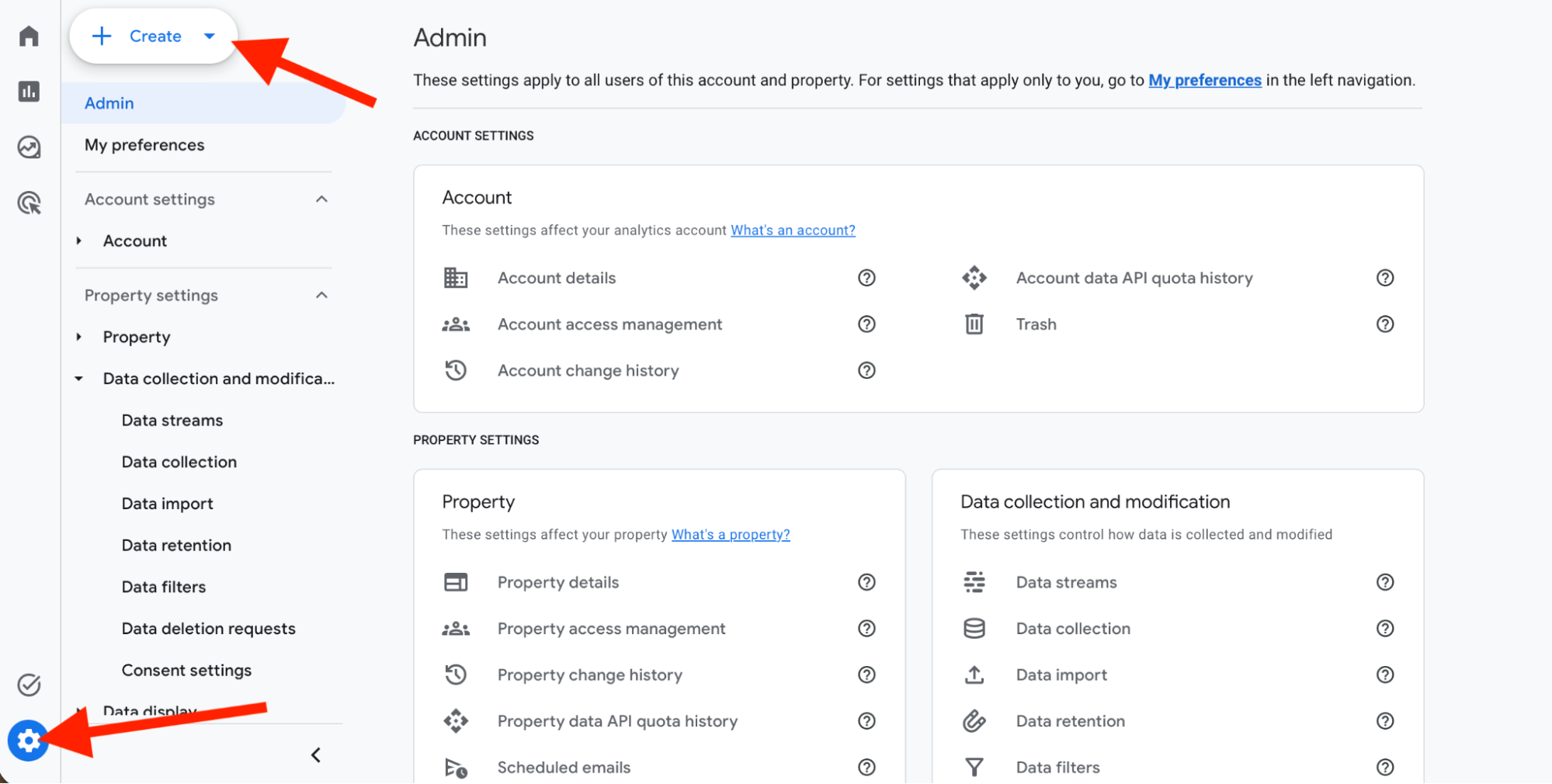
Once you're in, go to Admin in the bottom left corner and click Create at the top left to create a new account.
Step 2: Set Up Your Property
Account name: use the business name
Property name: use the business name again
Set your time zone and currency
Click through the remaining prompts (industry, business size, objectives) and click Create
Pro-Tip: If you are setting up Google Analytics for the first time, it will prompt you to set up a new account. However, if you have an existing account, you can set up a new account, or a new property (under an existing account) by going to Admin → Create
If you want your clients to be able to own their account, be sure to set up a new “account”, not a “property”, unless it is a new domain inside their own account. Ownership can only be given at the account level.
Step 3: Set Up a Data Stream
Select “Web” as your platform
Enter the website URL
Name the stream (business name works great here)
Click Create and Continue
Step 4: Get Your Measurement ID
Click More Options, then Install with a CMS or Website Builder
Select Squarespace from the platform list
Copy your Measurement ID (it starts with G-)
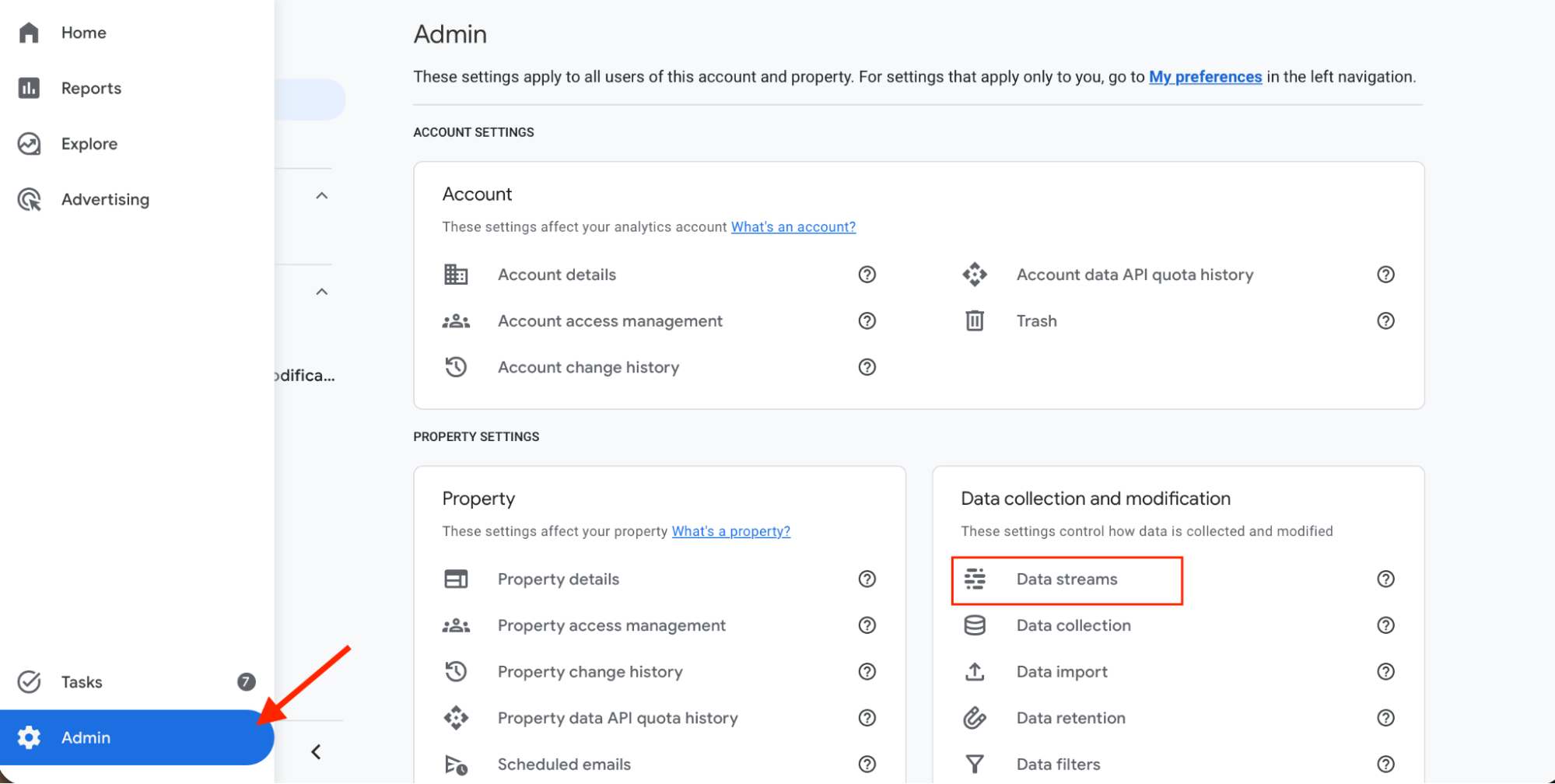
Pro-Tip: You can always find your measurement ID by going to Admin → Data Streams and then click on your data stream and the data will open in a side panel.
Step 5: Connect It to Squarespace
In your Squarespace dashboard go to Settings → Developer Tools → External API Keys
Paste your Measurement ID into the Google Analytics field
Hit Save
That's it. GA will start collecting data within 48 hours.
Pro Tip: Change Your Data Retention Setting. Before you close out, do this one extra step. In GA, go to Admin → Data Collection and Modification → Data Retention.
Change it from 2 months to 14 months and hit Save. This gives you a much bigger window of data to work with later.
A Note on Google Analytics Accuracy
Before you start poking around in your data, there's something worth knowing: Google Analytics is not a perfect picture, and that is ok.
A few things can affect what gets tracked.
If a visitor declines your cookie consent banner, GA may not record that visit.
Bots and spam traffic can show up in your numbers.
And if you're visiting your own site regularly, those visits can skew things too.
So if your numbers feel a little off, or lower than you expected, that's normal.
The way to think about GA is as a benchmark.
You're not trying to count every single person that lands on your page. You're establishing a baseline, something you can compare next month, next quarter, next year.
Did organic traffic go up? Are more people coming from YouTube than last month? Are the pages you optimized actually getting more visits?
That's the kind of information GA is great at giving you and that is what we are looking for, so don’t worry if it doesn’t perfectly match up with the leads that came into your inbox.
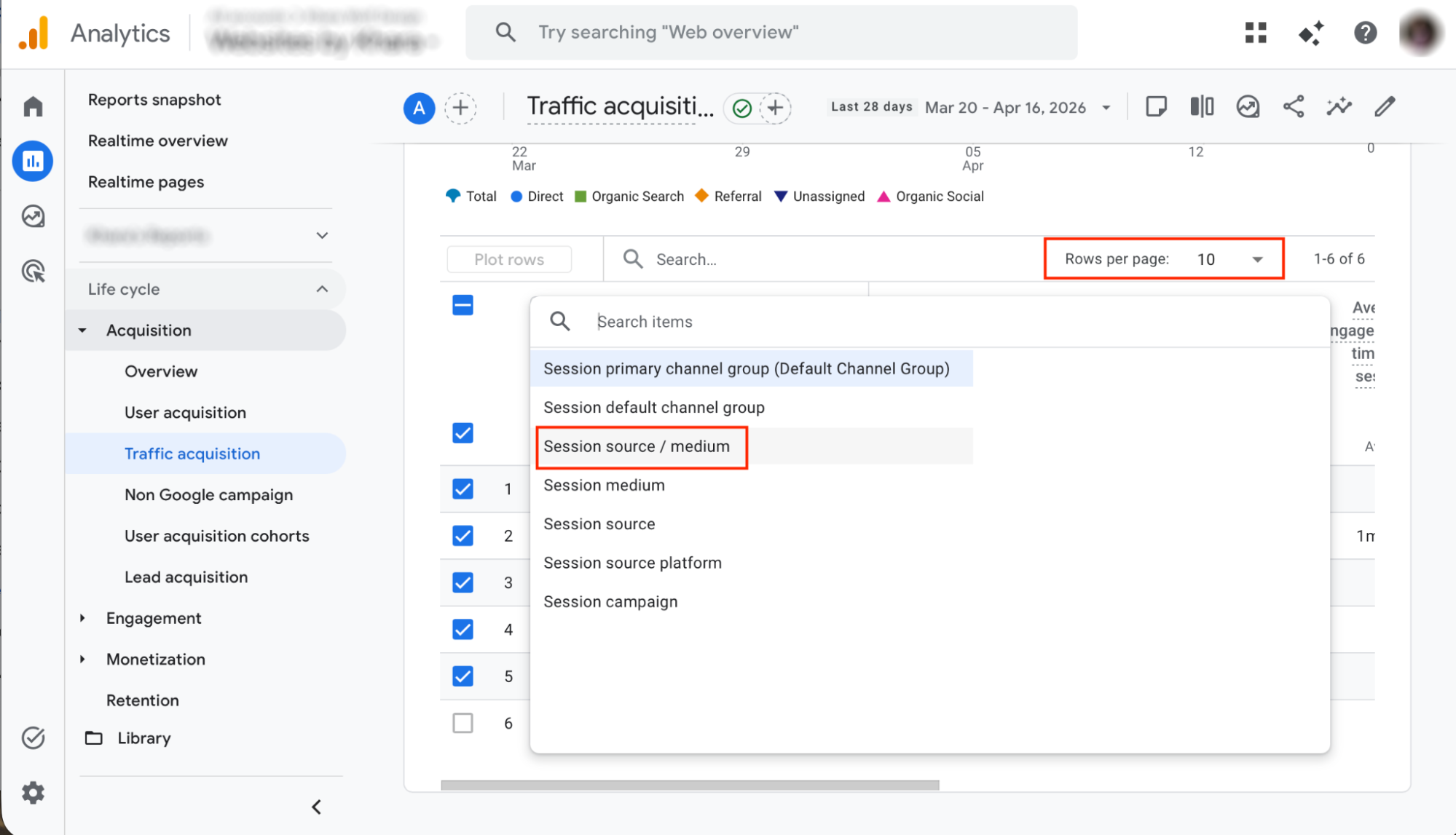
Pro-Tip: By default, GA only shows you 10 rows of data at a time. Always come up to the top of the report and increase the number of rows so you're seeing everything.
The Three Things to Look at in Google Analytics
You could go down a major rabbit hole in Google Analytics. We're not going to get you lost in the void.
Here are three reports worth focusing on when you're just getting started:
1. Where Is Your Traffic Coming From?
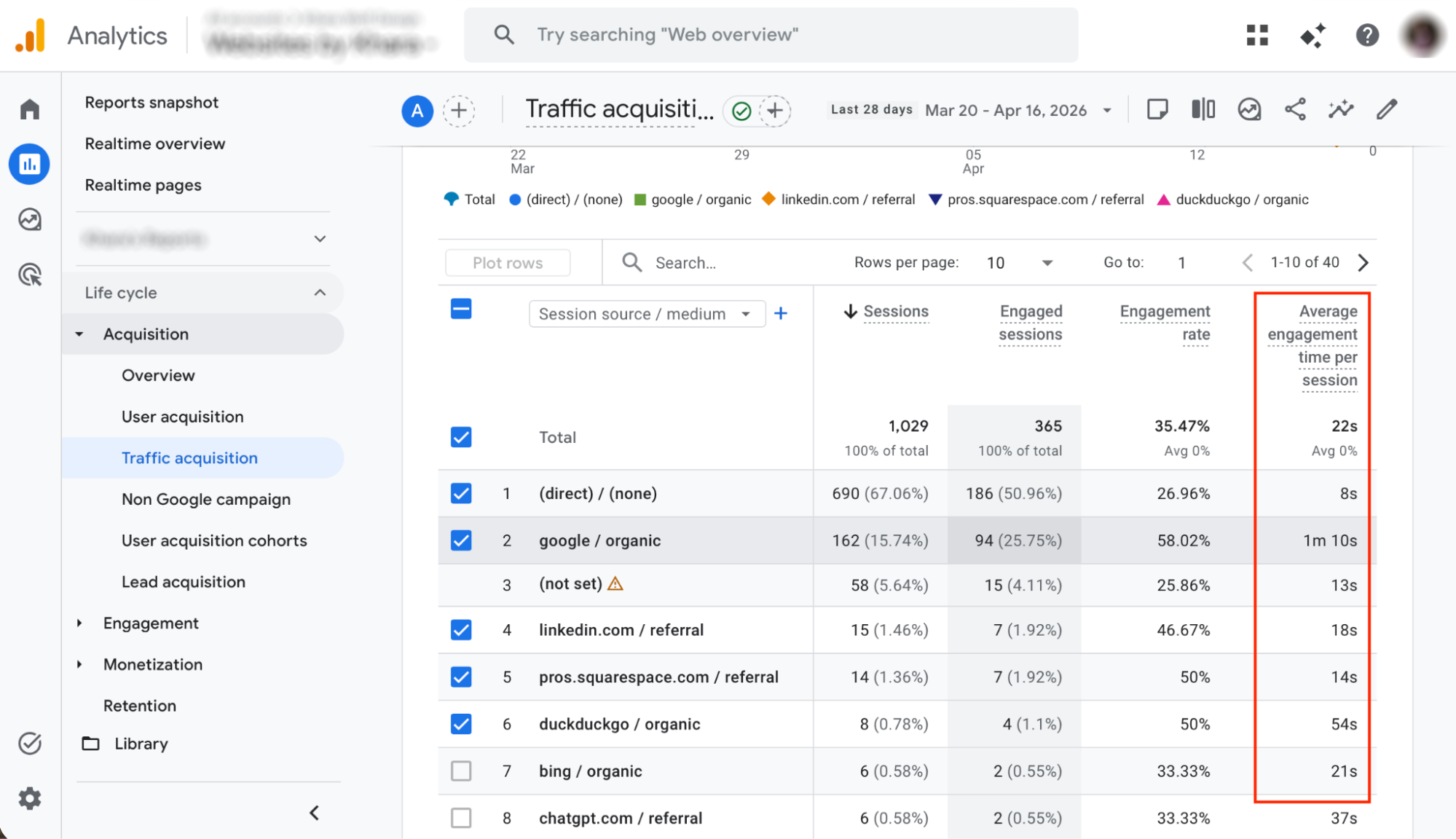
This is the Traffic Acquisition Report, and it's one of the most useful places to start:
In GA, click Reports on the left menu
Under Acquisition, click Traffic Acquisition
At the top right, change the date to Last 90 Days so you have enough data to work with
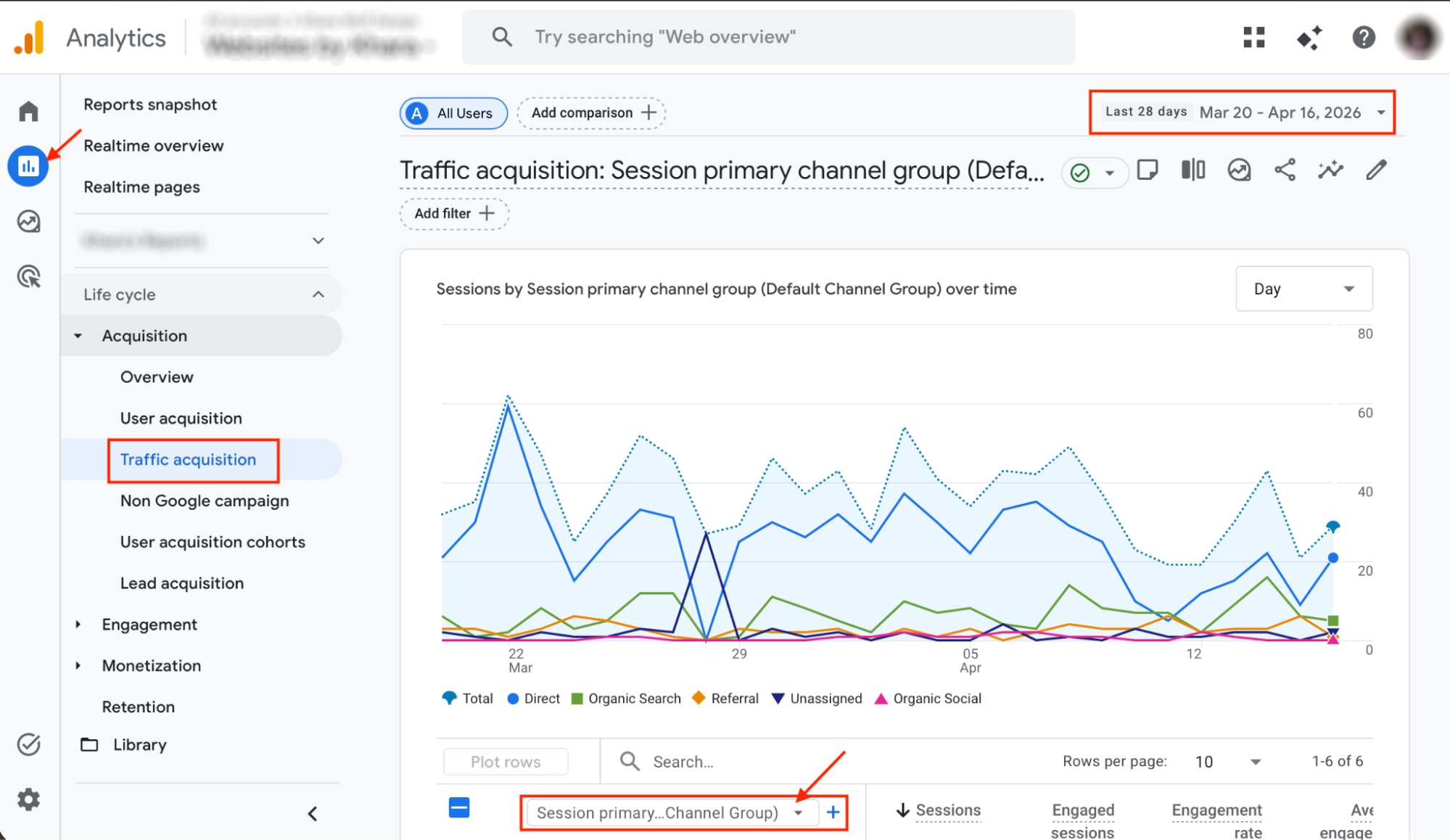
Click the dropdown that says Session Default Channel Group and switch it to Session Source / Medium
At the top of the report, increase the row count so you're seeing everything, not just the default 10
Now you can see exactly where your visitors are coming from. Google, direct traffic, LinkedIn, referral sites, and more.
Look at the Sessions column to see which sources are sending the most traffic, then look at Average Engagement Time to see which ones are sending the right traffic. A source with high engagement time means those visitors are a good match for what they found.
2. How Much Traffic Is Coming From YouTube?
If you're putting time into YouTube, you can use GA to tell you whether it's paying off.
Stay in your Traffic Acquisition Report
Use the “search feature” to type in “Youtube” to sort by that particular source
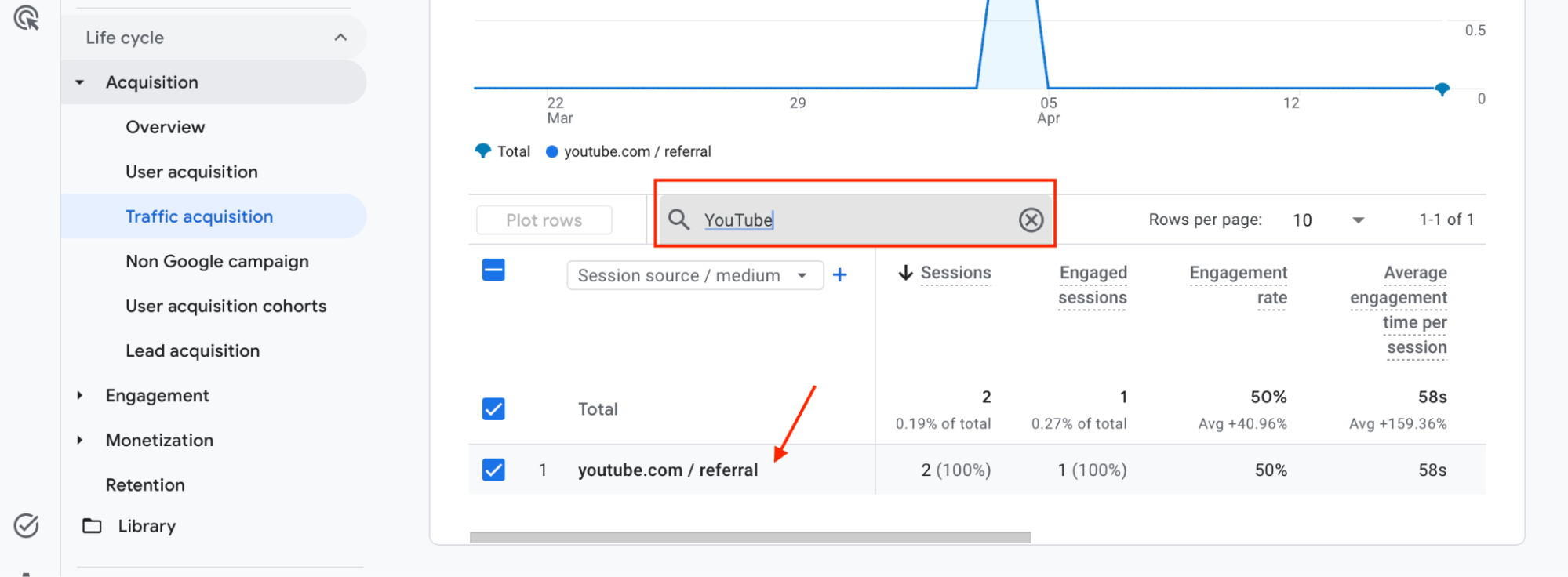
That number tells you how many people watched one of your videos and then came to your website. YouTube tends to bring warm traffic, people who have already spent time with you before they ever land on your site. If that number is growing, your YouTube efforts are working.
3. Which Pages Are Getting the Most Traffic?
In Reports, go to Engagement, then Pages and Screens
This shows you which pages on your site are getting the most views
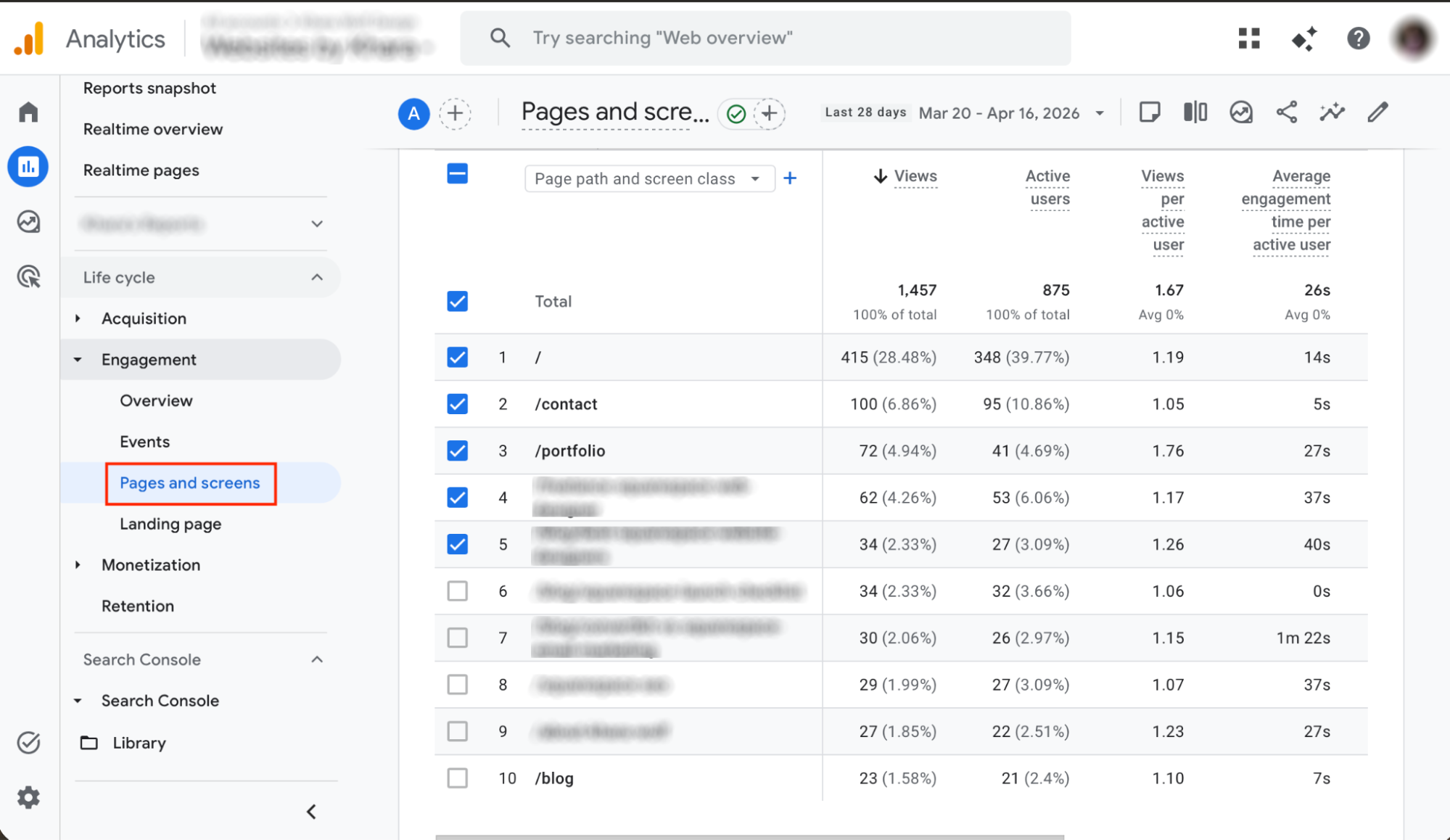
Look at your top pages. Are your service pages showing up? Your contact page?
If your most visited pages are the ones you want people to find, that's a good sign your SEO efforts are working. If a page you care about isn't showing up, that's useful information too.
You can also look at engagement time and bounce rate on these reports to see which pages are getting the right kind of traffic.
Low engagement time and a high bounce rate might indicate a conversion issue on the page itself (design issue) or that the wrong traffic is finding this page (aka search intent is off and people come and immediately leave because they were expecting something else).
Want to Go Deeper?
If this got you curious about what your own analytics are telling you, you might want to explore Khara’s SEO Course for Squarespace.

About Khara Wolf
Khara Wolf is a Platinum Squarespace Marketplace expert, a certified SEO expert, and the founder of Websites by Khara. Khara has been offering website design and SEO services since 2013 with additional expertise in branding, copywriting, graphic design, and marketing. She focuses on Squarespace website and SEO solutions that meet the unique needs of service providers and local businesses. Khara offers a personalized data-driven process, goes deep into each business to deliver websites that are discoverable, strategic, and built for growth.